

Apple's updated ad policies for 2026 are stricter than ever, focusing on privacy, transparency, and user protection. Developers must comply with new technical and content standards or risk losing access to Apple's advertising services, facing account restrictions, or app rejection. To engage developers effectively while staying compliant, here’s what you need to know:
- Key Focus Areas: AI transparency, detailed privacy labels, and clear subscription disclosures.
- Technical Requirements: Use Xcode 26, iOS 26 SDKs, digitally signed SDKs, and AdAttributionKit.
- Ad Content Rules: Align ads with app age ratings, avoid sensitive targeting, and follow strict content guidelines.
- User Transparency: Label ads clearly, disclose data usage, and prevent deceptive designs.
- Privacy Compliance: Update App Privacy Labels, secure user consent, and provide a detailed privacy policy.
Non-compliance can lead to delays or rejection during Apple’s review process, which typically takes 24–48 hours. Early preparation ensures smoother submissions and builds user trust. Follow the checklist to meet Apple’s standards and maintain access to its advertising ecosystem.
::: @figure 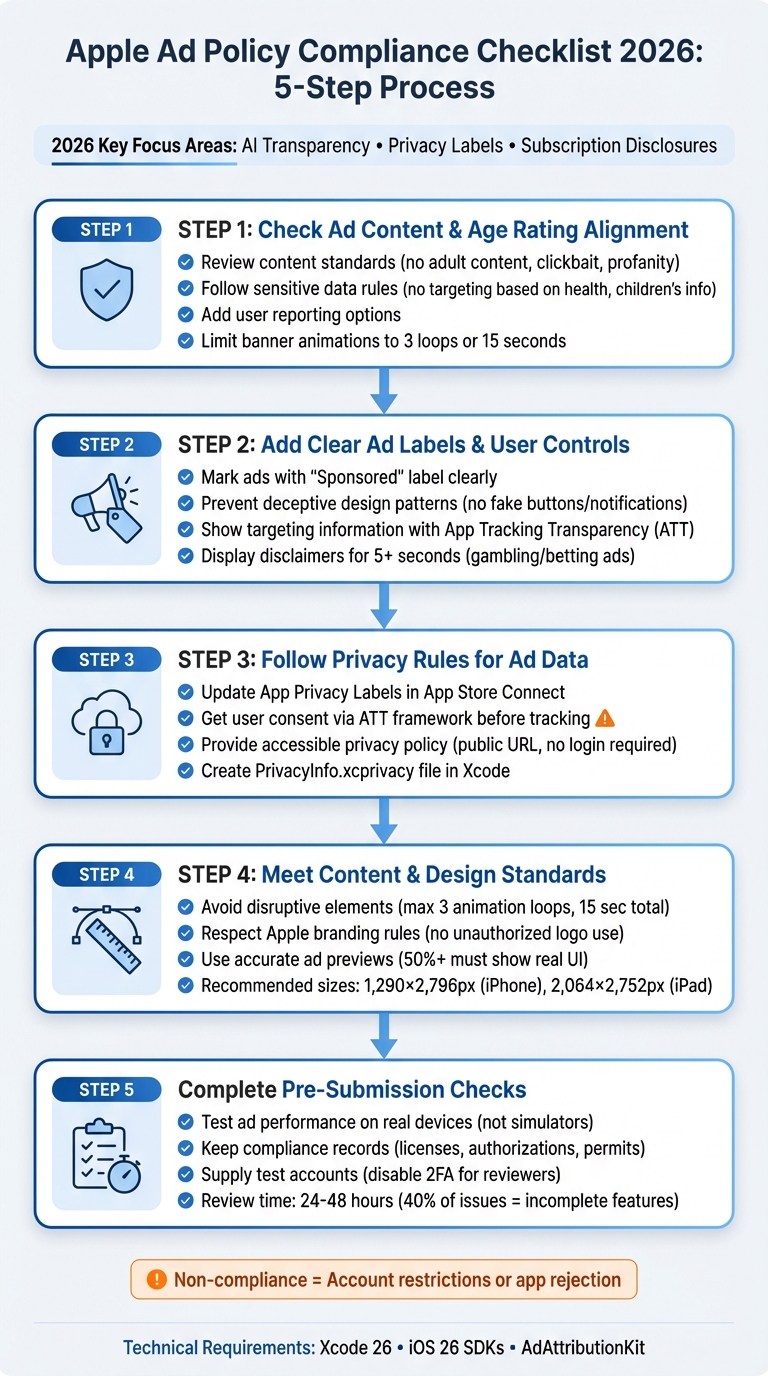 {Apple Ad Policy Compliance Checklist 2026: 5-Step Process}
Step 1: Check Ad Content and Age Rating Alignment
Before diving into ad creation, ensure your ads meet Apple's content standards and align with your app's age rating. Apple's automated systems review ads for relevance, quality, and compliance with age ratings. If your ads fail to meet these guidelines, you risk rejection or even account restrictions .
Review Content Standards
Apple's content rules are strict. Ads must not include adult content, clickbait, controlled substances, deceptive messaging, profanity, discriminatory language, or weapons . If you're using banner animations, keep them limited to three loops or a total of 15 seconds .
For specific ad types:
- Alcohol Ads: These must target adults and cannot depict alcohol consumption.
- Real-Money Gambling Ads: Local licenses are required, and ads must include a "Play Responsibly" disclaimer displayed for at least 5 seconds .
- UK Short-Term Loan Ads: Advertisers must register with the Financial Conduct Authority .
Apple’s stance on content is famously strict, as highlighted in its guidelines:
"We will reject apps for any content or behavior that we believe is over the line. What line, you ask? Well, as a Supreme Court Justice once said, 'I'll know it when I see it'."
- Apple Developer, App Review Guidelines
Follow Sensitive Data Rules
When it comes to user targeting, tread carefully. Ads must not target users based on sensitive data like health conditions, children's information, or legally protected attributes . Additionally, avoid personal descriptors such as "Single Men, 18–24" in your targeting criteria . If you plan to collect data, secure Apple's approval and provide a clearly visible privacy policy link .
Apps in the Kids Category face even tighter restrictions. These apps generally cannot include third-party advertising or analytics that collect the IDFA (Identifier for Advertisers) or any personally identifiable information . Political ads promoting candidates, parties, or electoral initiatives are also off-limits .
By adhering to these rules, you can avoid compliance issues and create a safer ad environment.
Add User Reporting Options
To maintain ad quality, give users tools to report inappropriate content directly from your app . Add filters to block offensive material and prevent abuse. For apps featuring creator-generated content, tools like the Declared Age Range API can help ensure content is age-appropriate .
Finally, ensure all metadata aligns with a 4+ age rating . App names must be limited to 30 characters, and your ad copy should be free of grammar, punctuation, and spelling errors . These small details can make a big difference in meeting Apple's standards.
sbb-itb-e54ba74
Step 2: Add Clear Ad Labels and User Controls
Once your ad content meets age ratings and content standards, the next step is to prioritize transparency and user empowerment. Ads should be unmistakably labeled as paid content, and users need clear options for managing their data. If your ads blend too seamlessly into the app or obscure their commercial purpose, you risk rejection. Let’s dive into how to design ads that meet these expectations.
Mark Ads Clearly
Every ad must be clearly labeled. For native and sponsored content, Apple mandates a "Sponsored" label. If your ad collects user data, you must also identify the advertiser or organization that will receive that data.
Disclaimers should use the same language as the ad and be displayed in a readable font for a sufficient amount of time. For instance, gambling or sports betting ads must keep disclaimers visible for at least 5 seconds. If the disclosure is delivered via audio, it should be at a volume and speed that’s easy for the average person to understand.
"Visual text disclosures should appear in a font sufficiently large to be easily noticed and read and must remain on the screen long enough to be read by average viewers."
- Apple Advertising Services
For ads involving surveys, clearly display the entity conducting the survey. If the ad addresses public issues, disclose who is funding it. Similarly, when using testimonials or endorsements, ensure the connection between the advertiser and the endorser is plainly stated.
Prevent Deceptive Design
Stay away from deceptive design patterns, often called "dark patterns." Ads should not mimic system notifications, organic content, or buttons like "Download." Avoid making it easier to accept an ad than to reject or close it. Design interfaces that treat user choices equally.
Make sure your ad metadata accurately represents the app’s features. Avoid misleading elements like hidden functionalities or fake screenshots. If using video previews, rely on actual screen captures of the app in action.
Show Targeting Information
Use App Tracking Transparency (ATT) to obtain explicit user consent before tracking their activity. Be upfront about how you collect and use data for ad targeting. Users should be able to view targeting details without leaving the app. Additionally, ensure that all ad visuals and text reflect the actual product to avoid misleading users. Keep up with Apple’s advertising guidelines, as they frequently adapt to new privacy laws and standards.
Step 3: Follow Privacy Rules for Ad Data
Protecting user privacy isn't just about ticking boxes - it's about maintaining a clear and documented approach to how ad data is handled. Apple places a strong emphasis on this, requiring developers to create a verifiable technical paper trail for all data collected, shared, or used for advertising purposes.
Update App Privacy Labels
You’ll need to update your disclosures in App Store Connect under the App Privacy section. This includes specifying whether your app or its partners collect user data. Apple defines "collect" as transmitting data off the device for purposes beyond fulfilling an immediate request .
Organize data into categories like Identifiers, Usage Data, Diagnostics, and Location, and then declare whether each type is "Linked to User" or "Not Linked to User" .
Starting in 2026, Apple will enforce these declarations through the Privacy Manifest system. This involves creating a PrivacyInfo.xcprivacy file in Xcode, which must align perfectly with your App Store Connect entries. Any mismatch will result in your app build being rejected . If your app integrates AI, you’ll also need to disclose what data is shared with AI services and identify the specific providers being used .
Once these labels are updated, the next step is securing explicit consent from your users.
Get User Consent
Apple’s App Tracking Transparency (ATT) framework requires you to get user permission before tracking them or accessing their device’s advertising identifier (IDFA) . Tracking includes linking user data from your app with data from other apps, websites, or sharing it with data brokers.
When presenting the ATT prompt, clearly explain why tracking is necessary. You can use an explainer screen before the official prompt to provide additional context, but you must not manipulate or pressure users into consenting. Offering incentives, such as discounts or app functionality, in exchange for tracking permission is strictly against Apple’s rules .
"You are responsible for making sure everything in your app complies with these guidelines, including ad networks, analytics services, and third-party SDKs, so review and choose them carefully."
- Apple Developer
You’ll also need to document user consent in the App Privacy section of App Store Connect. This includes specifying the types of data collected, how it’s used (e.g., for Third-Party Advertising), and whether it’s linked to the user’s identity . The PrivacyInfo.xcprivacy file in Xcode is where you’ll list all data types and indicate whether they are used for tracking .
After obtaining consent, the next critical step is creating a detailed privacy policy.
Provide a Privacy Policy
Every app must have a privacy policy, as required under App Store Guideline 5.1.1 - even if your app doesn’t collect any data . This policy must align with the "Privacy Nutrition Labels" in App Store Connect and include:
- A full list of all data types collected
- Reasons for data collection (e.g., Third-Party Advertising, Product Personalization)
- Names of ad networks or analytics providers that handle user data
- Data retention periods
- Steps for users to access, correct, or delete their data
- Instructions for deleting an account and associated data within the app
- A valid contact email or form for privacy inquiries
The privacy policy must be accessible via a public URL - no login required - and linked in both App Store Connect metadata and within your app’s settings or registration flow . Be sure the URL is stable, as Apple commonly rejects apps with privacy policy links that lead to a 404 error . If your app allows account creation, you’re also required to let users delete their accounts and data directly within the app - not just through a website .
Step 4: Meet Apple's Content and Design Standards
After handling content and privacy checks, it’s time to focus on ensuring your ad visuals and design align with Apple’s expectations. Apple has strict rules to maintain a seamless user experience and uphold the integrity of their ecosystem. Failing to meet these standards is a common reason for ad rejections.
Avoid Disruptive Elements
Apple enforces clear limits on how animations and visual effects are used in ads. For example, banner animations must not exceed 15 seconds in total and can loop no more than three times . Flashing effects? Those are a no-go and will lead to immediate rejection .
Audio rules are equally strict. Ads must be silent by default and can only play sound if the user initiates it - except for pre-roll video ads, which are an exception . Additionally, ads must not interfere with standard device functions, such as the Volume or Ring/Silent switches .
| Element | Requirement/Limit |
|---|---|
| Animation Looping | Maximum 3 loops, 15 seconds total |
| Audio | Must be user-initiated (except pre-roll) |
| Image Quality | Must be clear and legible - no blurriness |
The content of your ads also matters. They must link directly to relevant material - no misleading "jump pages" or unrelated links . Apple also prohibits sensationalized headlines like "Win a Prize!" or any clickbait-style messaging . These design rules work hand-in-hand with privacy and content requirements to create a seamless user experience.
Respect Apple Branding Rules
Apple is very protective of its branding. You cannot use the Apple logo or any Apple-owned graphic symbols without their explicit written permission . This includes the keyboard Apple logo (⌥⇧K) or any altered versions of Apple trademarks.
"Only Apple and its authorized resellers and licensees may use the Apple Logo in advertising, promotional, and sales materials."
- Apple Legal
If you’re referencing Apple products like "iPhone" or "Apple Watch", make sure their names are less prominent than your product name . For example, use phrasing like "App Name for iPhone" rather than "iPhone App Name" .
When showcasing Apple hardware, stick to official Apple-provided product images. Creating your own 3D renderings or illustrations of Apple devices is not allowed . Additionally, don’t display Apple products alongside competing devices in the same ad . Mimicking Apple’s website design, packaging, or user interface is also prohibited .
Use Accurate Ad Previews
Once your branding is in check, ensure your ad previews are accurate and realistic. Screenshots and previews should show the app in actual use - not splash screens, title art, or conceptual designs . At least 50% of the preview must display the app’s real user interface, and marketing text or overlays shouldn’t obscure it .
For 2026, Apple recommends using these base sizes for previews: 1,290 × 2,796 pixels for the 6.9-inch iPhone and 2,064 × 2,752 pixels for the 13-inch iPad . Files should be in PNG format with the RGB color space to ensure clarity . Avoid using alpha channels or transparency - flatten all images before submission .
Previews must also avoid misleading elements. Don’t include pricing like "Free" or "$0.99", competitor logos, or fake status bars showing impossible signal strength . Any claims, like "Works Offline", must be provable in your app’s current version . Use Apple’s "Preview Ad on News" feature to see how your ad looks on an actual iPhone, rather than relying on desktop previews .
Step 5: Complete Pre-Submission Checks
Before you click "submit", it’s worth double-checking that everything is in place for Apple's review team. While most reviews are completed within 24 hours, a whopping 40% of issues come from incomplete or unstable app features . A thorough check can help you avoid unnecessary rejections and speed up the approval process. Here’s how to make sure your submission meets Apple’s standards.
Test Ad Performance
Run your ads on real devices - not just simulators - to catch crashes or stability problems that simulators might miss . Use tools like Workbench Ad Tester to preview ad tags and share the results with your creative partners .
Make sure all third-party SDKs and ad networks align with Apple’s safety and privacy rules . Build your app using the latest tools - Xcode 26 and iOS 26 SDK - to ensure it’s up-to-date . Test on IPv6-only networks to confirm that ads load smoothly in all network scenarios . If your app features in-app purchases or subscription paywalls, ensure these are clearly visible to reviewers .
Keep Compliance Records
Once you’ve tested ad performance, document every compliance detail to back up your submission. Apple requires proof of authorization for any third-party content used in your ads. Upload all relevant partnership agreements, licenses, and authorization documents in the "Attachment" section of App Store Connect . For regulated services like real-money gambling, lotteries, VPNs, or cannabis-related apps, include official permits and licenses .
| Documentation Type | Required For | Submission Location |
|---|---|---|
| Demo Credentials | Account-based features | App Review Information |
| IP Authorization | 3rd-party content/trademarks | Attachment Section |
| Regulatory Clearance | Medical/Health apps | Review Notes (Link/Attachment) |
| Ad Service Policies | Kids Category apps | Review Notes (Link) |
| Business Licenses | Mainland China advertising | Attachment Section |
If your app involves medical hardware or claims to diagnose or treat conditions, include regulatory clearance (e.g., FDA approval) for all regions where the app will be available. For apps targeting children that display third-party ads, provide a link to the ad service’s publicly documented practices showing human review of ad creatives for age-appropriateness.
Supply Test Accounts
Apple’s reviewers need full access to evaluate your app’s features. Provide valid demo credentials in the "App Review Information" section . Double-check these credentials five minutes before submission to ensure they’re active . Disable Two-Factor Authentication (2FA) on test accounts, as reviewers can’t access accounts with multi-factor authentication enabled .
If legal or security reasons prevent you from sharing login details, include a built-in demo mode that displays all app functionality . For apps requiring specific hardware or unique environments, supply a demo video or include sample resources (like QR codes) in the review notes . Use the "Review Notes" field to explain any features or configurations that might not be immediately obvious to reviewers . Finally, make sure backend services stay live during the 24–72 hour review period .
Using daily.dev Ads for Developer Campaigns
If you're promoting developer tools, events, or resources, daily.dev Ads is a platform worth considering. It connects with over 1 million developers globally while staying in line with Apple's privacy and content guidelines. With ad placements like in-feed ads, post page ads, and personalized digest ads, the platform integrates smoothly into the developer experience. This seamless approach ensures your campaigns avoid the intrusive tactics that Apple's policies explicitly discourage .
How daily.dev Ads Supports Compliance
daily.dev has a stringent onboarding process that requires advertisers to use a verified work email and confirm company representation. This not only meets Apple's advertiser accountability standards but also helps prevent misleading practices . The platform emphasizes transparency with a clear Privacy Policy and Terms of Service, along with explicit user consent mechanisms for cookies and data collection. These measures align perfectly with Apple's rule that ads must not trick users into sharing personal information without their informed consent .
Additionally, daily.dev's native ad formats allow you to promote developer tools and resources in a professional and compliant manner. Ads avoid pricing claims or "get-rich-quick" messaging, which are prohibited under Apple's guidelines. The platform also ensures adherence to Apple's native ad specifications, such as limiting headlines to 130 characters and advertiser names to 22 characters, making it easier to craft concise and effective messages for your audience .
Running Developer-Focused Campaigns
When running campaigns on daily.dev, you can target developers based on seniority level, programming languages, and specific tools. This targeted approach aligns with Apple's focus on audience segmentation, helping you connect with high-intent users . For instance, if you're promoting a cloud infrastructure tool, you can zero in on senior backend engineers familiar with Kubernetes and AWS - developers most likely to find value in your offering.
To meet Apple's requirements, back up any performance claims with evidence . If your campaign involves restricted categories like pharmaceuticals, gambling, or alcohol, make sure you have the proper licenses and apply age restrictions for users 18 and older . For campaigns targeting a global audience, localize your ad text to match the language of the region, as Apple mandates that app names and subtitles align with the campaign's localized language . Use daily.dev's real-time tracking tools to monitor metrics like TTR, conversion rates, and CPA. These insights will help you make informed adjustments, keeping your campaigns running efficiently .
Conclusion
This checklist highlights the key steps to keep up with Apple's changing standards. Ensuring compliance with Apple's ad policies in 2026 hinges on prioritizing transparency, protecting user privacy, and delivering a high-quality user experience. Apple now requires apps to include detailed privacy labels and disclose AI usage clearly. As Sweety Rai from The App Launchpad explains:
"Privacy and data transparency are major priorities in 2026. Apps must clearly disclose what data they collect, how it is used, and obtain consent before sharing it with third parties, especially AI services" .
The five steps in this checklist - content alignment, clear labeling, privacy compliance, design standards, and pre-submission testing - serve as the backbone for any successful campaign. Conducting regular audits is essential to prevent delays and maintain visibility .
For developers looking for a simpler approach, daily.dev Ads offers a solution that meets Apple's strict standards. The platform focuses on transparency and user experience while providing real-time tracking tools to help monitor metrics and make informed adjustments .
FAQs
What’s the fastest way to avoid an Apple ad policy rejection in 2026?
To keep your app in line with Apple's advertising standards and avoid rejections, it's crucial to follow their Advertising Policies and App Store Guidelines. This means submitting a fully functional app that's free of crashes or placeholder content.
Here are some key tips to help you stay compliant:
Steer Clear of Prohibited Content: Avoid using themes or materials that are discriminatory, adult-oriented, or controversial. Apple's policies are strict about maintaining a safe and respectful environment.
Be Transparent About Data Collection: Clearly communicate how you collect and use user data. Include a privacy policy in your app and ensure it meets Apple's standards. Gaining Apple's approval for this aspect is essential.
Use High-Quality Ads: Your ads should be visually clear, professional, and accurately represent your product or service. Misleading or low-quality ads can lead to rejections.
By focusing on these areas, you can improve your chances of a smooth approval process with Apple.
How do I know if my ad targeting counts as “sensitive data” targeting?
The information provided doesn't detail how to identify if ad targeting falls under "sensitive data" targeting. For clarity, consult Apple's updated ad policies, which outline what is considered sensitive data.
What should my PrivacyInfo.xcprivacy file include for ads and analytics?
Your PrivacyInfo.xcprivacy file needs to clearly detail the data your app or any third-party SDKs collect, as well as the "Required Reason APIs" utilized. Here's what to include:
- Data types collected: Specify the types of data your app or SDKs gather.
- Required Reason APIs categories: Identify the API categories your app or SDKs rely on.
If you're using third-party SDKs, they are responsible for providing their own PrivacyInfo.xcprivacy files. Starting with Xcode 15, these files are combined into a unified privacy report, ensuring accurate Privacy Nutrition Labels.